GEOCODING
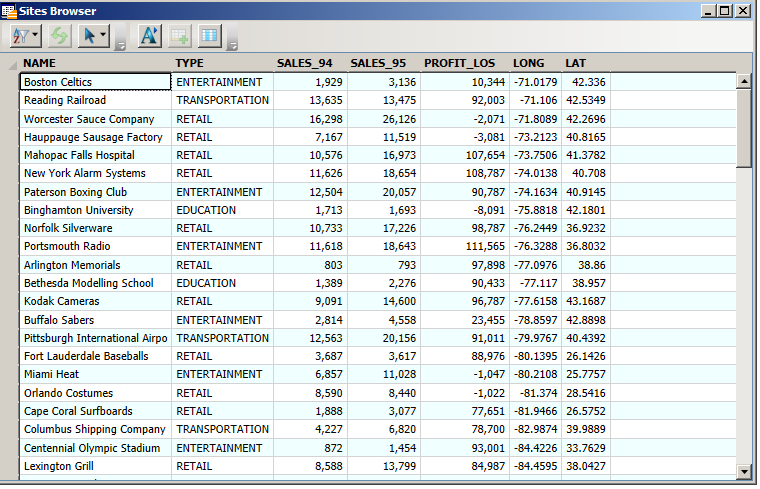
Geocoding is performed on tables which lack geographic coordinates, but do contain addresses, zip codes or reference to geographical regions (Figs. 1, 2).
Figure 1. Table with spatial coordinates. This table has lat and long coordinates; the "Create Points" command can be used to map these records.
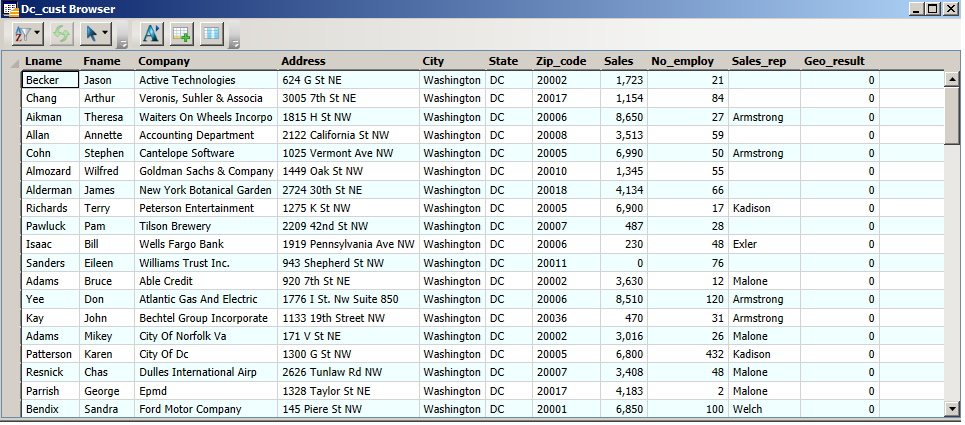
Figure 2. Customer table: there are no spatial coordinates in the table, but there are three kinds of locational data: address, city and zip - these can be used to geocode the table.
Geocoding is a very powerful and useful feature of GIS because you can take a database of thousands of records and map them as points, revealing hidden geographical patterns and enabling geographic analysis, such as Boundary Select.
Geocoding matches records in the geocode table with another table that contains spatial coordinates for the matching features (the search table).
Geocoding Methods: There are three geocoding methods;
1. Geocode by Boundary. If your table record contains reference to a geographic region and the region can be matched to a region in a map layer, then this method assigns the centroid coordnates (lat and long) of the map region to the table record. E.g. county matched to county (Fig. 3).
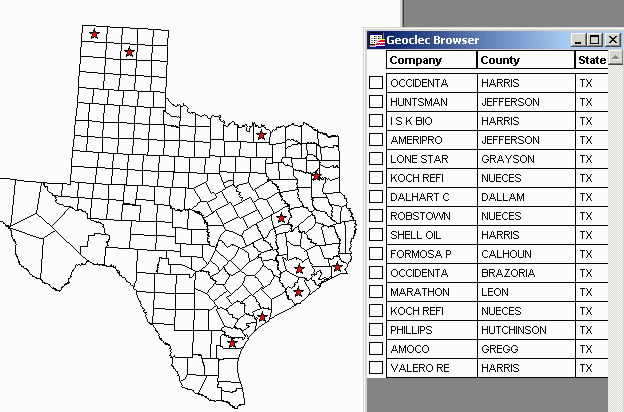
Figure 3. The 16 records of the geoclec
table
geocoded by boundary "County" - each record is represented by a star at
the centroid of
the county.
If several points are geocoded to the same region (e.g. a county centroid) they will overlie each other and appear as one point (this does not affect selecting, such as boundary select - see Harris county above).
2. Geocode by 5 Digit Zip Code. MapInfo comes with a 5 digit zip code centroid file for the whole U.S. (i.e. the file contains the lat and long coordinates for the center of all 5 digit zip code areas – US_Zips) (Fig. 4). If your point table contains zip codes this geocode method looks up the centroid coordinates for the zip code and places them in a .map file (Figs. 4, 5) .
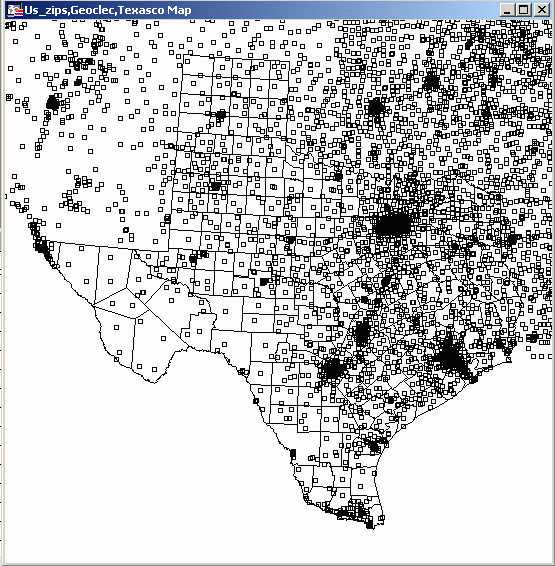
Figure 4. The U.S.Zips table contains points
representing centroids of all 5 digit zip codes in the U.S.
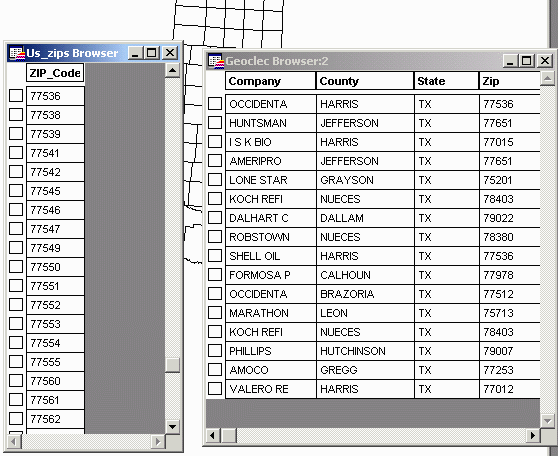
Figure 5. Geocoding by zip matches the zip
code in a
table (Geoclec.tab) to the zip code centroid in the search table
(US_Zips.tab).
Each county contain many zip codes, so the result is more accurate (Fig. 6)
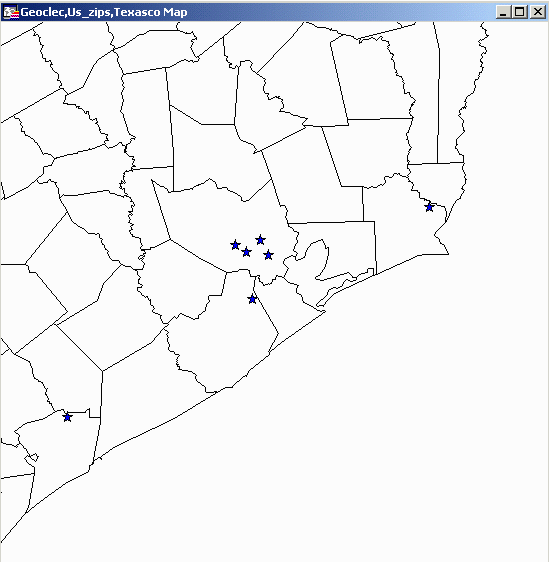
Figure 6. Geoclec.tab geocoded by zip. The 4 records in Harris County are in different zip codes.
3. Geocode by Address: This is geocoding to street address level. It requires a special search table - a street map with address ranges e.g.
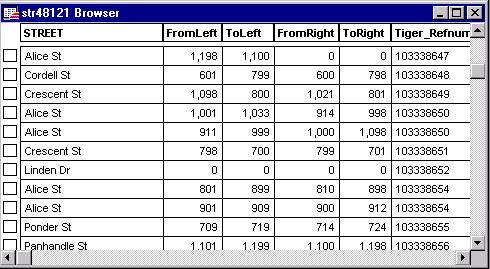
The format has to be exactly as shown for geocoding to work. Where does this information come from? Many street maps used for geocoding are based on U.S, Census Bureau TIGER files (Topologically Integrated Geographic Encoding and Referencing). New TIGER files become available with a new census (so they may be out of date - especially in areas of rapid growth like DFW). Commercial companies update and sell street maps for geocoding.
MapInfo tries to match an address to the address in the street map e.g. using the example shown above, the address 700 Cordell St would match the street segment Cordell St 600 - 798. The address would be placed about half way along the segment on the right-hand side of the street. MapInfo looks for an exact match, so the address 700 Cordell would not match (St is missing); similarly, 700 Cordell Street would not match. However, geocoding includes an abbreviation option that would make St equivalent to Street, Av equivalent to Avenue and so on. Another option instructs Mapinfo to use the nearest street number if an exact match can't be found e.g. if 800 Cordell St doesn't exist on the street map, it could still be matched to Cordell St 600 - 798 (it would be placed at 798, the nearest number to 800).
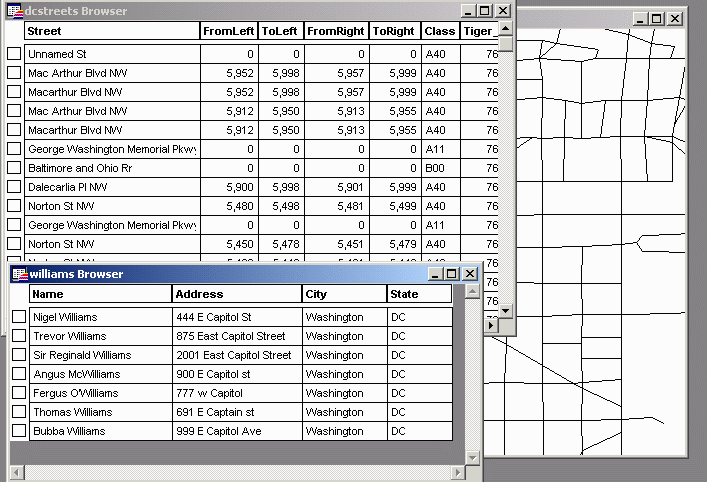
Figure 7. The table "williams" contains
addresses that can be matched to the table "dcstreets".
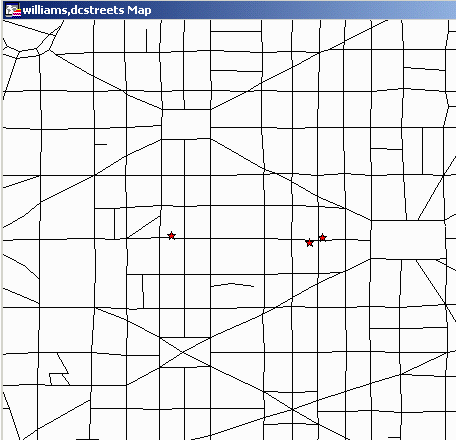
Figure 8. The geocoded addresses appear as
points in
the correct position along the block (correct number, correct side of
the
street).