PAGE DESIGN
Printing Your Map
Using MapInfo onscreen you work mainly with map windows and browser windows; but when the time comes to print a map you usually need a title, a legend, maybe a scale bar and your name on the map and all these elements of the finished map need to be arranged on the printed page.
Scale Bar. Scales are often not included in business maps. If you need one, a scale tool is available on the MAP tool bar.
Legend: Creating the legend for the active map is accomplished by selecting the HOME| LEGEND tool. By default, MapInfo includes all visible layers in the legend (excluding the COSMETIC layer). The easiest way to create a legend is to accept all the defaults and then clean up the legend by editing the result.
The Layout Window.Arranging the map elements (e.g. map windows, browser windows, legends) on the printed page is done in MapInfo’s Layout window. The layout window represents the printed page. You arrange map elements on the layout using frames (windows onscreen, frames on a layout). Frames can be resized, reshaped, repositioned and their fill and border can be edited.
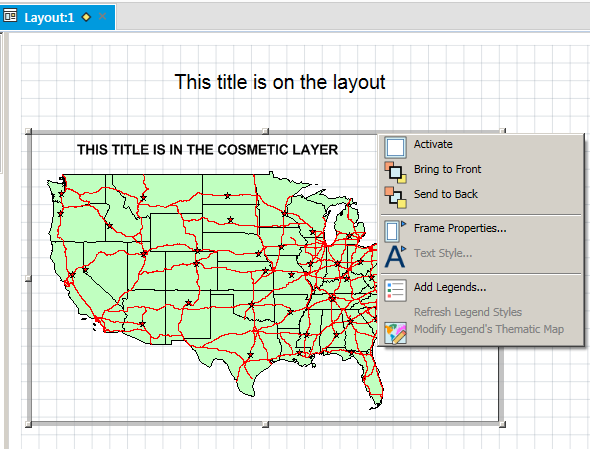
Title: there are 2 ways of adding a title:
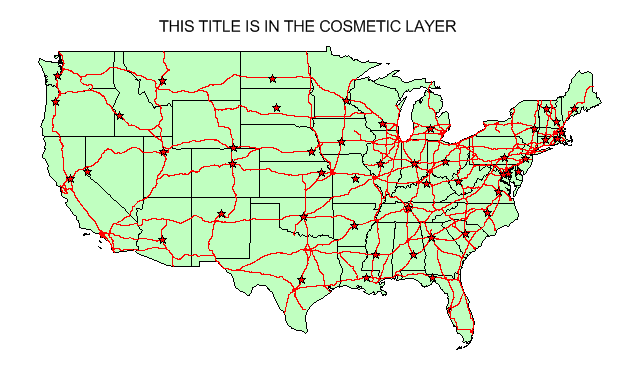
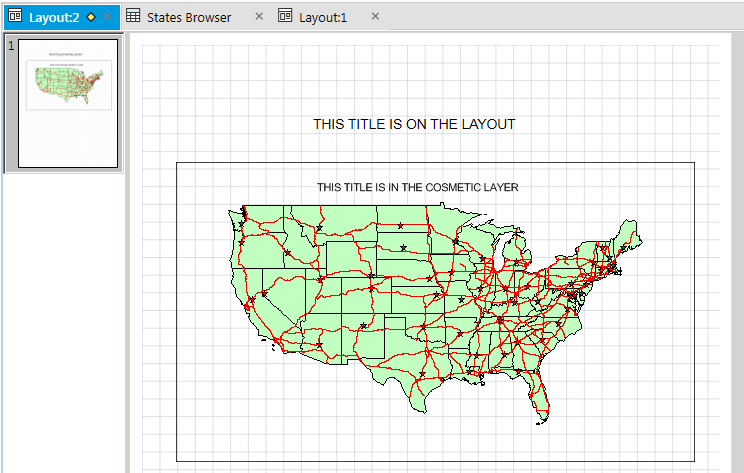
The title and legend should be clear and informative (i.e. using default text descriptions in the legend is NOT good enough). If the title describes the map contents, the legend title can just be "LEGEND". The title should include what, where and when (e.g. Gas Wells in North Texas in 2012).
You can right-click on a frame to "activate" it - then you can use MAP tools on the map (e.g. pan, zoom-in):
Alignment: generally, it's a good idea to align frames on your maps e.g.
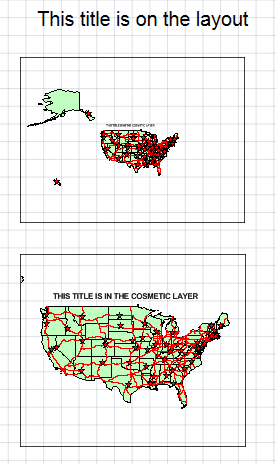
The 2 frames above are aligned on their left edges.
Windows And Frames
MapInfo will fit a map window into a frame.
General rules:
1. The shape of your map window should match the shape of the map feature. Your map window display setting should be FLOATING to allow you to change the shape of the window (right-click on the map window title bar and select floating).
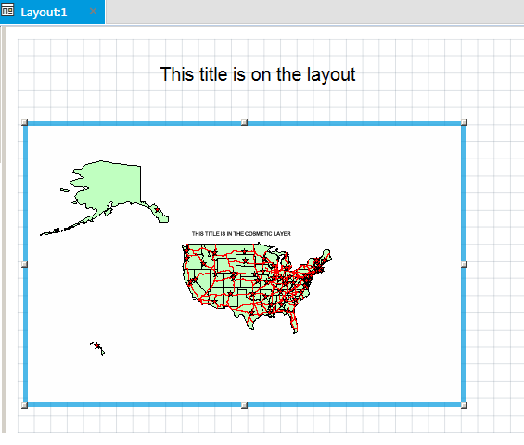
2. You should fill your map window with the map feature (avoid lots of empty space).
3. NEVER truncate (cut off edges) your map feature.
4. make the frame the same shape as the window.
e.g.
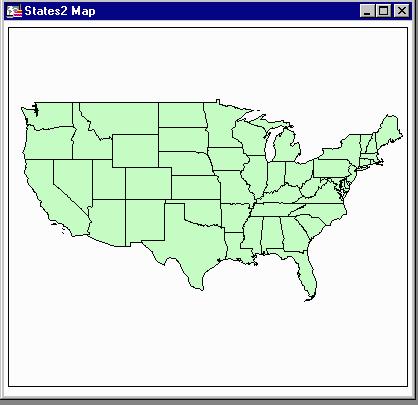
Figure 3. Square map window filled with map.
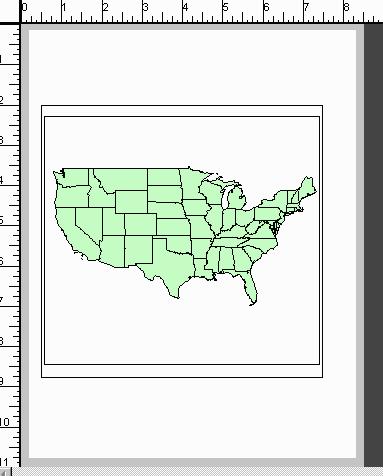
Figure 4. Square frame containing square map window.
You should try to make maps fill up available space on your layouts (i.e. avoid tiny maps surrounded by lots of empty space).
Putting Browser Windows in Layouts.
Browsers can be placed in frames on layouts. The frame will by default expand to fill the layout and show as much of the browser as possible. You can resize browser windows (again, set the window display to floating) and frames to show only the part of the browser you wish to. You can reorder fields in a browser window by clicking on the field heading and dragging the field to a new location.
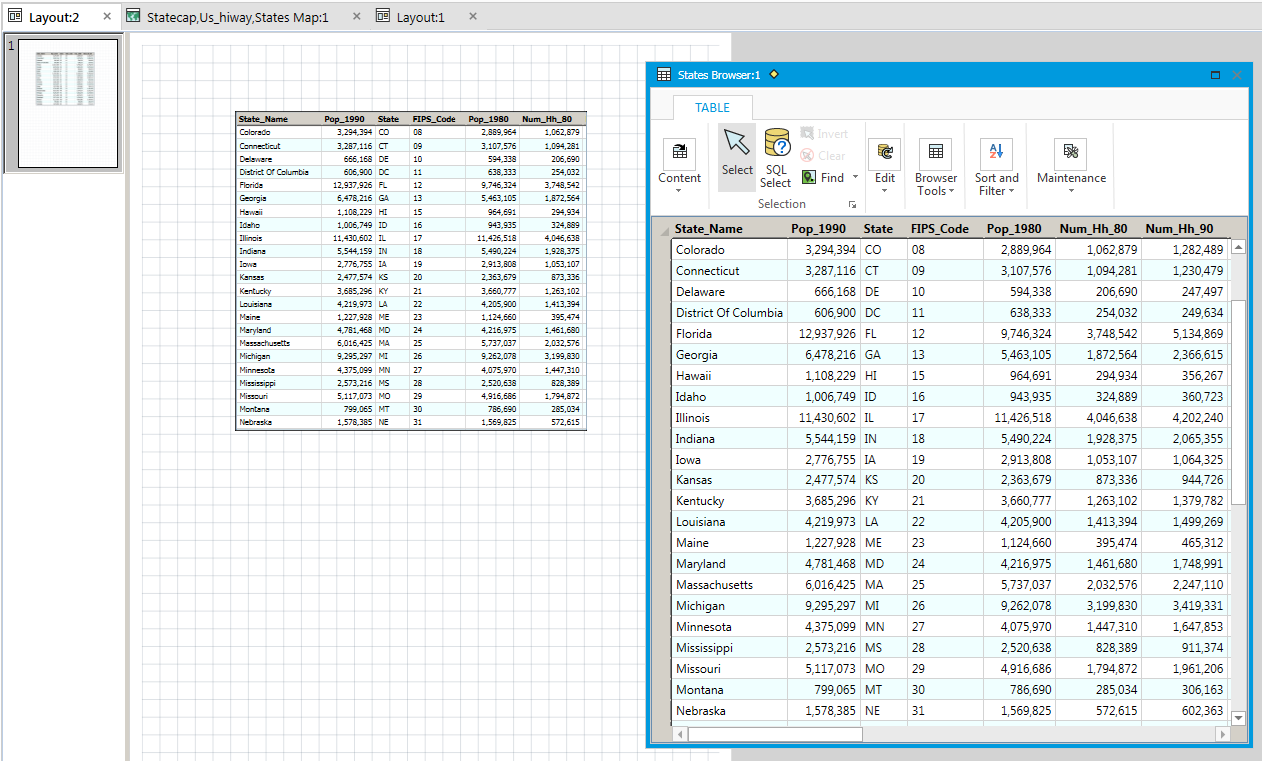
Figure
5. The States Browser has been rearranged to show Colorado to Nebraska
and the Pop_1990 field has been dragged to the left to make it the 2nd field. These changes are shown in Layout
2.